---
title: "Gemini CLI"
description: "Use Google's Gemini CLI with Bifrost for advanced reasoning capabilities with any provider."
icon: "diamond"
---
[Gemini CLI](https://github.com/google-gemini/gemini-cli) is Google's powerful coding assistant with advanced reasoning capabilities.
If your Allowed Headers are already set to `*`, you can skip this note. If not and you face issues integrating Bifrost with Gemini CLI, try switching to `*` or adding the specific headers required by your client. By default, Bifrost whitelists: `Content-Type`, `Authorization`, `X-Requested-With`, `X-Stainless-Timeout`, and `X-Api-Key`.
## To install Gemini CLI
```bash
npm install -g @google/gemini-cli
```
## Configuring Gemini CLI to work with Bifrost
Gemini CLI supports multiple authentication methods. Choose the one that matches your account type.
### Google account (OAuth)
Log in with your Google account for free-tier access (60 requests/min, 1,000 requests/day).
1. **Set the Bifrost base URL**
```bash
export GOOGLE_GEMINI_BASE_URL=http://localhost:8080/genai
```
2. **Run Gemini CLI and sign in**
```bash
gemini
```
Select **Login with Google** and authenticate via your browser. All traffic automatically routes through Bifrost.
### API key based usage
For users with a Gemini API key (obtain one from [Google AI Studio](https://aistudio.google.com/apikey)):
1. **Configure environment variables**
```bash
export GEMINI_API_KEY=your-api-key # Gemini API key or Bifrost virtual key
export GOOGLE_GEMINI_BASE_URL=http://localhost:8080/genai
```
2. **Run Gemini CLI**
```bash
gemini
```
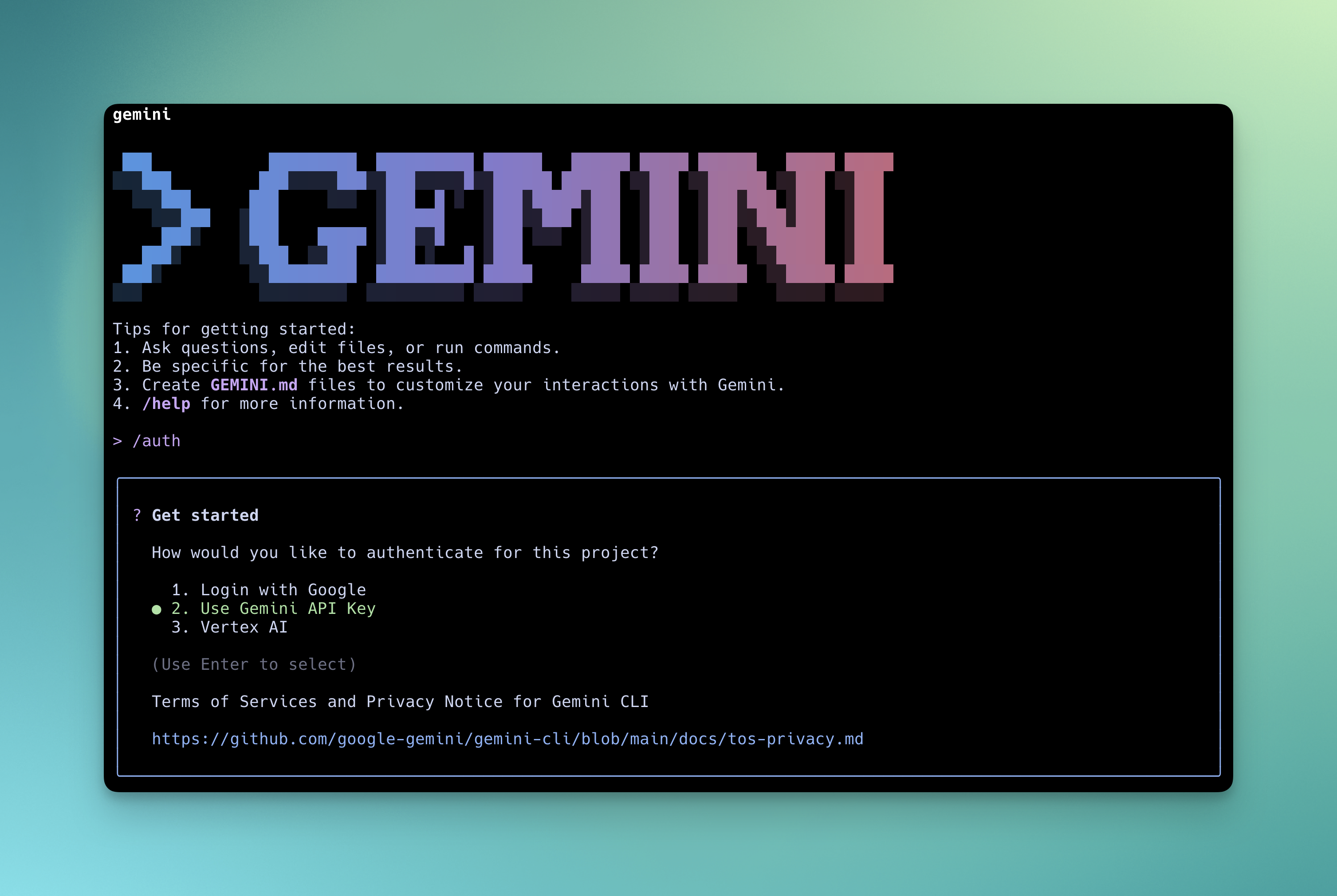
Select **Use Gemini API Key** in the CLI prompt for authentication.
### Google Cloud / Vertex AI
For enterprise users with Vertex AI access:
```bash
export GOOGLE_API_KEY=your-api-key # Google API key or Bifrost virtual key
export GOOGLE_GENAI_USE_VERTEXAI=true
export GOOGLE_GEMINI_BASE_URL=http://localhost:8080/genai
gemini
```
For paid Code Assist License users, set your Google Cloud project: `export GOOGLE_CLOUD_PROJECT="your-project-id"`
Now all Gemini CLI traffic flows through Bifrost, giving you access to any provider/model configured in your Bifrost setup, plus observability and governance.
## Model Configuration
Use the `-m` flag to start Gemini CLI with a specific model:
```bash
gemini -m gemini-2.5-flash
gemini -m gemini-2.5-pro
```
## Using Non-Google Models with Gemini CLI
Bifrost automatically translates GenAI API requests to other providers, so you can use Gemini CLI with models from OpenAI, Anthropic, Mistral, and more. Use the `provider/model-name` format to specify any Bifrost-configured model.
```bash
# Start with an OpenAI model
gemini -m openai/gpt-5
# Start with an Anthropic model
gemini -m anthropic/claude-sonnet-4-5-20250929
# Start with a Groq model
gemini -m groq/llama-3.3-70b-versatile
```
### Supported Providers
Bifrost supports the following providers with the `provider/model-name` format:
`openai`, `azure`, `gemini`, `vertex`, `bedrock`, `mistral`, `groq`, `cerebras`, `cohere`, `perplexity`, `xai`, `ollama`, `openrouter`, `huggingface`, `nebius`, `parasail`, `replicate`, `vllm`, `sgl`
Non-Google models **must support tool use** for Gemini CLI to work properly. Gemini CLI relies on tool calling for file operations, terminal commands, and code editing. Models without tool use support will fail on most operations.